
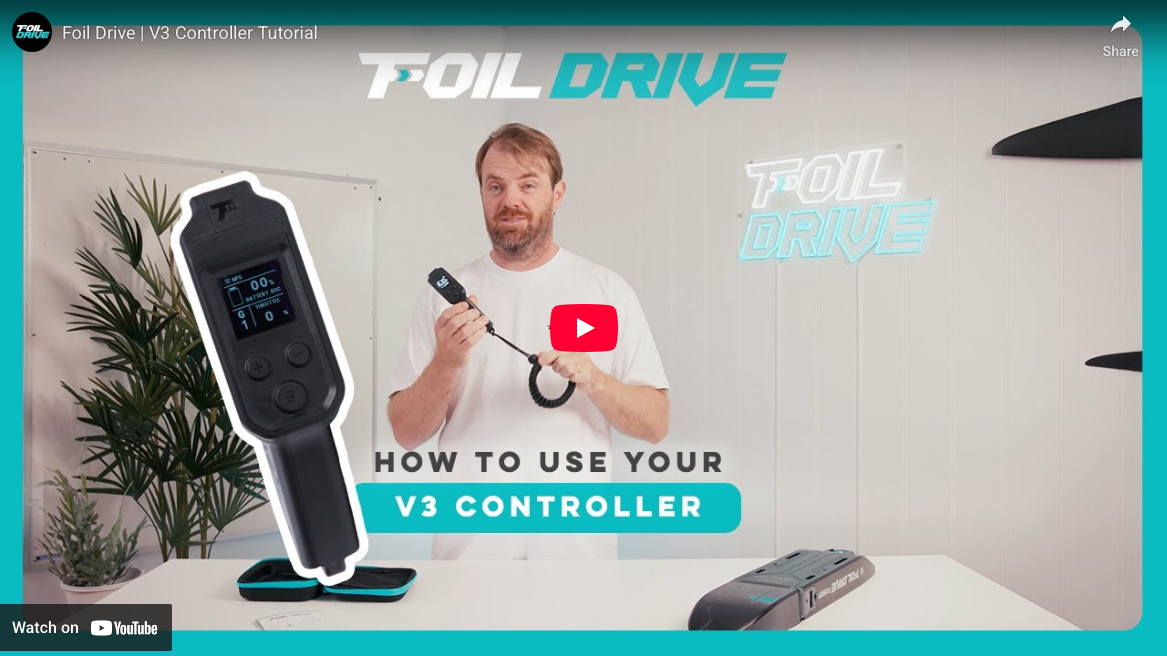
Foil Drive V3 Remote Explained | Features, Modes and Menus
Foil Drive’s V3 Controller is a true from-scratch redesign that aims to make riding more straightforward, safer, and more data-rich. In Paul’s deep dive, he walks through the new hardware, the updated control modes (including the new gear mode), the on-screen data pages, and the settings that help you tune the remote for your riding style—whether you’re learning, cruising, or chasing waves.
What’s New With the Foil Drive V3 Controller
A more ergonomic, lighter remote
Paul describes the V3 Controller as:
- Ergonomic and easy to hold
- Not too big
- Lightweight (and not heavy in-hand)
Removable throttle guards (two included)
The kit includes two throttle guards:
- A larger guard
- A narrower/smaller guard
This gives you flexibility to choose more protection or a slimmer feel around the trigger.
Major ruggedization upgrades
Durability is a big focus:
- More impact-resistant for real-world knocks and drops
- Better suited for long-term saltwater exposure
- Built to handle a “live in the ocean” lifestyle
Completely redesigned electronics and PCB
A key point: this is not an incremental update.
- The electronics and PCB design are redesigned from scratch
- Nothing internal is carried over from prior controller generations
GPS + Bluetooth: Why the V3 Controller Is Smarter
Built-in GPS tracking
The V3 Controller includes a GPS that provides:
- Current speed
- Top speed
- Distance traveled
Paul also notes this will expand in the future through the Foil Drive app.
Bluetooth connectivity to your phone
Bluetooth is built in to support:
- Future feature updates via the Foil Drive app
- Firmware updates (“flashing” the controller), similar to updating other Foil Drive systems
- A platform that can improve over time as feedback comes in
GPS privacy note
Paul explicitly addresses privacy concerns:
- GPS data is stored locally on the controller
- It doesn’t “go anywhere” unless you eventually connect to the app in the future and download track data
Screen and Display Pages: What You’ll See While Riding
A brighter, easier-to-read screen
The V3 Controller has:
- A bright screen that’s easier to see in sunlight
- A larger screen to show more information per page
Page 1: The “critical info” page
This page is designed to be the one most riders can live on.
-
Battery voltage and state-of-charge
-
Battery icon
Mode indicator:
-
T = throttle/trigger mode
-
1–5 = gear mode gears
Lock status:
-
Shows “lock” when locked
-
Unlock by pressing and holding B
-
Throttle percentage indicator as you pull the trigger
Page 2: Session time + speed + distance
Scroll with B:
- Session time (minutes)
- Current speed (km/h or mph)
- Current distance traveled (metric or imperial)
Page 3: Top speed + wattage + temperature
This is where the data gets more “tuning and diagnostics” focused:
- Top speed for the session
- Current wattage (real-time power draw)
- Main unit temperature (useful for fault finding and support context)
Page 4: RPM + amps + voltage
A deeper diagnostic page showing:
- Motor RPM
- Current amps draw
- System voltage
Always-on top row indicators
No matter which page you’re on, the top row stays consistent:
- Signal quality bars (remote-to-box link quality)
- GPS icon (only shows when GPS is enabled/active)
- Controller battery indicator
What Comes in the Box
Included accessories
The V3 Controller kit includes:
- Protective case
- Instruction manual (detailed, with QR codes linking to articles/videos)
- Wrist strap
- Induction charging pad + USB
- Two throttle guards (different shapes)
- Allen keys (1mm and 12mm mentioned for the guard bolts)
Why Foil Drive keeps pointing you to the manual
Paul makes this a big “first step” recommendation:
- The V3 has a lot of features
- The manual is intended to answer the most common questions before contacting support
- QR codes link to up-to-date guidance
Basic Operation: Power, Pages, and Menus
Powering on/off
Power button is the plus (+) button:
- Press and hold + to turn on
- Press and hold + to turn off
- The press is intentionally longer to prevent accidental power toggles
Scrolling pages
- Press B to scroll through display pages
Opening the menu
- Press + and - at the same time to enter the menu
Navigating the menu
- Use + and - to move up/down
- Press B to select
- Hold - to exit back to the main operating screen
Pairing: Connecting the V3 Controller to Any Foil Drive System
Compatible with all Foil Drive systems
Paul states the V3 Controller can talk to:
- Assist
- Assist Plus
- Slim
- Max
- Fusion
How to pair
In the pairing menu:
- Select Pair
- It will prompt you to “reconnect battery”
- Plug the battery into the unit
- The screen confirms “pairing complete”
Pairing safety tip (important if you’re around other Foil Drive users)
Paul recommends:
- Tell nearby Foil Drive users you’re pairing
- Get close to your unit when reconnecting the battery
- The controller will prefer the closest signal and could pair to someone else’s box if multiple systems are nearby
Calibration: Fixing Trigger Range or Zero-Throttle Issues
When to calibrate
Calibration is helpful if:
- The throttle doesn’t return to zero properly
- The throttle isn’t reading full travel (up to your configured max)
When calibration will NOT help
If the trigger can’t physically return to zero because of debris:
- Sand/grit/shells physically blocking movement should be removed
- Calibration isn’t a substitute for cleaning out physical obstruction
How to calibrate
In the calibration menu:
- Press B
- The screen prompts “pull throttle”
- Pull the trigger fully
- Controller calibrates and shows “complete”
- It exits automatically when done
Troubleshooting calibration issues
If calibration doesn’t behave:
- Inspect for debris restricting the trigger/magnet travel
- Try a factory reset (like rebooting a computer)
- If still unresolved, contact support
Throttle Modes Explained: Trigger vs Gear
Trigger mode (traditional throttle feel)
Trigger mode is straightforward:
- Pull trigger = linear throttle response
- The controller shows T on the screen
Boost behavior in trigger mode
Paul explains the “boost window” concept:
-
Normal throttle range is 0–95%
-
95–100% activates boost
-
Boost amount and duration are programmable in the Foil Drive app
After boost is used:
-
It times out
-
You can’t use it again until you’ve come off throttle for a cooldown period
Practical rule of thumb:
-
Let off the trigger, count to around 10, then try again if you want boost back
Gear mode (new control style)
Gear mode changes how throttle is delivered:
- You set 5 gears (1–5)
- Each gear is a programmable “throttle ceiling”
- Screen shows G and the gear number (G1, G2, etc.)
- You can still pull full trigger, but it tops out at your gear’s set value
Why gear mode is easier in real conditions
Paul’s big pitch: gear mode reduces the need for perfect finger control.
- You can “slam the throttle” and cruise at a predictable power level
- Less surging due to slight finger jitters (especially helpful with powerful systems)
- Easy power adjustments with quick gear changes (tap + / -)
The B button “full power” behavior in gear mode
In gear mode, B becomes a momentary full-power override:
- Hold B = jumps to 100% while held
- Release B = returns to the gear’s programmed level
This can be a huge deal when:
- You’re trying to get onto foil while holding board rails
- You want a brief surge without managing trigger finesse
- You need quick acceleration to get over a wave lip or reposition fast
Throttle Mapping: Programming Your Gears (or Limiting Throttle)
Editing gear percentages
In gear mode, throttle mapping shows:
- G1, G2, G3, G4, G5 values (percentages)
To adjust:
- Select a gear with B
- Value flashes
- Use + / - to change
- Press B to confirm
A practical gear strategy (Paul’s example)
Paul shares a real-world setup approach:
- Gear 1: low power for near-shore maneuvering (rocks/sandbars)
- Gear 2–4: clustered closely in a “sweet spot” for efficient cruising
- Gear 5: high cruising power when you want speed without full boost
- Use B for short surges when you need instant power
Why gears close together can be smart
As battery voltage drops during a session:
- The same throttle percentage may feel weaker mid-session than at the start
- Slightly higher gears help maintain a consistent “feel” as voltage declines
- This can keep thrust predictable through much of the battery discharge
Limiting throttle for kids or learners
Paul explains a safety-focused approach:
- Put the controller into trigger mode
- Reduce max throttle (example: around 48%)
- This deliberately removes access to boost at that low throttle setting
- Result: a safer ceiling for lighter riders who don’t need full power
If you need low throttle but still want a surge
Paul’s guidance:
- Use gear mode
- Set gears to low values
- Teach the rider to use B only when needed
Battery Voltage Settings: Getting Accurate Battery Readings
Supported voltage profiles
The controller includes voltage selections for different systems:
- 43V: Fusion
- 40V: most Gen 2 batteries (except Slim Endurance)
- 28V: Slim Endurance battery and Assist Plus batteries
- 22V: original Assist architecture
What happens if you choose the wrong voltage
For most non-Fusion systems:
- Battery percentage readings can be inaccurate (it may “lie”)
For Fusion:
- Fusion uses a different protocol and smart BMS reporting
- State of charge is communicated directly
- Battery percentage behaves more like a phone (steady decreases)
Why battery % can bounce on Gen 2 systems
On systems where % is derived from voltage:
- Under load, voltage drops (battery % appears to drop)
- When you let off the throttle, voltage rebounds (battery % rises again)
- That’s normal behavior for voltage-based estimation
GPS Mode: Setup Tips and First-Time Lock Behavior
GPS on/off
GPS can be toggled on or off, but:
- Paul notes there’s no real advantage to turning it off for battery savings
Bootloader/diagnostic screen for GPS
There’s a mode that shows what GPS is “seeing,” which helps when troubleshooting.
First-time GPS lock can take a while
This is a key expectation-setter:
- The first time you use the controller, the GPS lock can take around 30 minutes
- After it “learns” and gets initial satellite data, it should lock faster in future sessions
Practical tip
Paul’s routine:
- Turn the remote on 5–10 minutes before the session
- Let it acquire satellites before you’re ready to ride
Tilt Sensor: Safety Feature That Can Confuse People (Until It Clicks)
What it does
Tilt sensor is a safety cut-off:
- If pitch/roll exceeds the allowed range, it locks and cuts motor output
- The allowed pitch/roll thresholds are programmed in the Foil Drive app
- The remote menu is just an on/off toggle for using that function
How to tell if “lock” is a tilt sensor vs a normal lock
Paul points out the common confusion:
- If you press and hold B and it won’t unlock, the tilt sensor may be doing its job
- Your board or unit might be oriented “wrong” relative to the allowed tilt range
Important behavior when the board returns into range
If it locks due to tilt, then it returns into range:
-
It may show zero again
-
But if you were holding the throttle during the lock:
-
You must release the trigger back to zero
-
Then reapply the throttle to run again
Lock Settings: Lock on Start and Throttle Auto Lock
Lock on start
This is a safety prompt when the controller powers on:
- Remote starts locked
- Press and hold B to unlock intentionally
- Can be turned on/off in settings
- Paul suggests using it as a deliberate safety step
Throttle auto lock (great for teaching)
Auto lock can re-lock the controller after a set time of no throttle interaction:
- Adjustable from 0 to 100 seconds
- Paul uses around 6 seconds when teaching beginners
- Adds safety after falls or while getting reorganized in the water
When it’s not ideal
In surf or heavy conditions, auto lock can be annoying:
- If you fall and need immediate power to get out of trouble, waiting to unlock can be the last thing you want
- Advanced riders may prefer it off
Cruise Control: “Set It and Forget It” Throttle (With Caveats)
What it is
Cruise control sets a fixed throttle percentage so you don’t have to hold the trigger.
How to set it
- Set a cruise value in the menu (example shown: 44–45%)
- Cruise control is intended for throttle mode (not gear mode)
How to activate cruise control
There’s a safeguard to prevent accidental activation:
- You need to be pulling some throttle (above ~20%)
- Then press and hold -
- It snaps to the pre-set cruise value
How to cancel cruise control
Any of these actions will cancel it:
- Touch the trigger
- Press +
- Press -
- Press B (switching pages also kills throttle)
Safety responsibility note
Paul makes it clear:
- If you activate cruise, it will keep commanding that output until canceled
- Understand your tilt sensor behavior and lock behavior if you’re using cruise in real conditions
Screen and Power Saving Options: Making the Remote Last Longer
Screen sleep
Screen sleep turns the display off while keeping the controller on and connected.
- Saves battery
- Screen wakes with any button press or trigger movement
- Paul recommends turning it on
Brightness
Brightness is adjustable:
- Higher brightness for harsh sunlight
- Lower brightness for longer battery life
- Paul finds level 3 to be a strong all-around setting
Auto power off
Auto power off prevents dead-controller surprises:
- Adjustable from 1 to 60 minutes
- If you don’t interact with the controller, it powers itself down
- Useful if you often forget to turn it off after sessions
Factory reset
Factory reset is a troubleshooting tool:
- Solves “weird computer-like” issues
- Restores factory settings if you’ve changed too many things
- Controller will reboot and turn back on
FAQs: Foil Drive V3 Controller
How do I unlock the V3 Controller when it says “lock”?
Press and hold B. If it won’t unlock, check whether the tilt sensor is active and whether your board/unit orientation is outside the allowed tilt range.
What’s the difference between trigger mode and gear mode?
- Trigger mode: linear throttle controlled entirely by trigger pull
- Gear mode: sets a throttle ceiling per gear (1–5), with easy step changes and a momentary full-power override using B
How does boost work?
In trigger mode, boost is activated at the top end of the throttle:
- Normal throttle: 0–95%
- Boost activation zone: 95–100%
- Boost behavior (amount and duration) is programmable in the Foil Drive app
- After a boost, you need a cooldown period off throttle before it’s available again
Why would I use gear mode instead of trigger mode?
Gear mode is ideal if:
- Your system is powerful, and small finger movements cause surging
- You want predictable cruising power without managing micro-adjustments
- You want quick “full power” access using the B button while keeping your gear setting as your default
My speed/distance isn’t showing yet. Is GPS broken?
Not necessarily. Paul notes:
- First-time GPS lock can take a long time (around 30 minutes)
- Turn the remote on 5–10 minutes before your session to help it lock satellites
What does the signal bar icon mean?
It shows remote-to-box signal quality:
- More bars = stronger signal
- Fewer bars = weaker signal (move closer, check interference, ensure pairing is correct)
Why does my battery percentage bounce around on some systems?
On systems where % is estimated from voltage:
- Voltage drops under load and rebounds when the load is removed
- Fusion behaves differently because the smart BMS reports the state of charge directly
What should I do if the trigger won’t return to zero or doesn’t read the full range?
Try in this order:
- Inspect for debris blocking the trigger movement
- Calibrate the trigger in the menu
- Consider a factory reset if behavior is still odd
- Contact support if the issue persists
Key Takeaways
- The V3 Controller is a complete redesign: new rugged hardware, new electronics, and a more refined user experience.
- Gear mode is the standout feature for real-world usability, especially on powerful setups where trigger precision can cause surging.
- Built-in GPS and Bluetooth make the controller more data-rich now and more expandable later through app updates.
- The display pages range from “ride essentials” (battery, mode, throttle) to deeper diagnostics (watts, temperature, RPM, amps).
- Safety features like tilt sensor, lock on start, and throttle auto lock can prevent accidents, but riders should understand how they interact to avoid confusion in the water.
- The manual is part of the product: Foil Drive included detailed instructions and QR-linked resources because the V3 has a lot of capability.
Recent Posts
-

F-One Trigger TEC vs Brainchild | Performance Tested in Brazil
When two kites share the same name, the same designer, and the same big air DNA, but are built on …3rd Mar 2026 -

Soöruz 6/5/4 Hooded Wetsuit Review
For most of the year, if you want to be on the water, you’re zipped into something thick. And once …2nd Mar 2026 -

Why the Ride Engine Empax Vest Is a Shop Favorite
When riders ask us about flotation, the first thing we usually have to do is slow the conversation …26th Feb 2026