
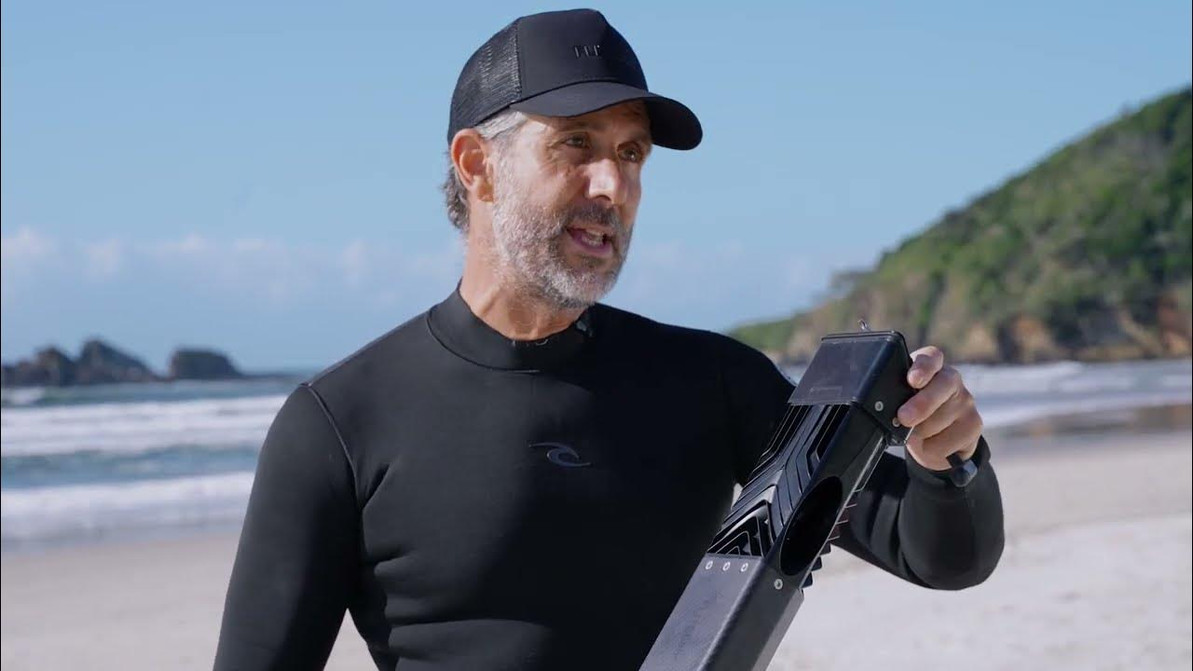
How to Set Up the FLITELab AMPJet
Get Your AMPJet eFoil Ready for the Water
Download the App and Update the Software
It's a good idea to update the app and check your connection at home before going to the beach! That way, when you're ready to get out on the water, you can activate your stoke with little headache.
Charge the LAUNCHPad and AMPCell
Similarly, charge your components ahead of time! Thankfully, both the LAUNCHPad and AMPCell have simple charging processes.
Charging the LAUNCHPad
- Remove LAUNCHPad charger, LAUNCHPad, and USB cable from the travel cases.
- Plug the USB cable into the wireless charger and into a USB power source.
- Place the LAUNCHPad onto the wireless charger. After about 10 seconds the LAUNCHPad should turn on and show that it is charging. It may take 5-10 minutes to show this light if the battery is totally depleted.
Charging the AMPCell
- Remove AMPCell from its travel bag.
- Place AMPCell in a cool, dry location away from flammable or hot items. Safe charging temperatures are 0-40°C and optimal charging temperatures are 10-30°C.
- Connect AMPCell charger plug to AMPCell by sliding the plug into the dovetail on the end of without the handle.
- Connect the wall plug to your power source and turn on.
- The charger will detect to connect battery and display a green light, which will turn red after about 5 seconds to indicate charging has successfully begun.
- The charger will automatically stop charging once the AMPCell is full and the charger light will turn green.
- Turn off charger at wall and remove the AMPCell.
Set Up the AMPJet Cartridge
Make sure both AMPCells are clean, dry, and charged. (You can check the AMPCell charge by shaking them!)
To connect, slide the dovetails together until the AMPCells are level with each other and you feel a noticeable click. If you're only using one AMPCell, slide the AMPCell and AMPCell Spacer together. The spacer will only connect on one end to make sure the order is correct within the AMPJet.
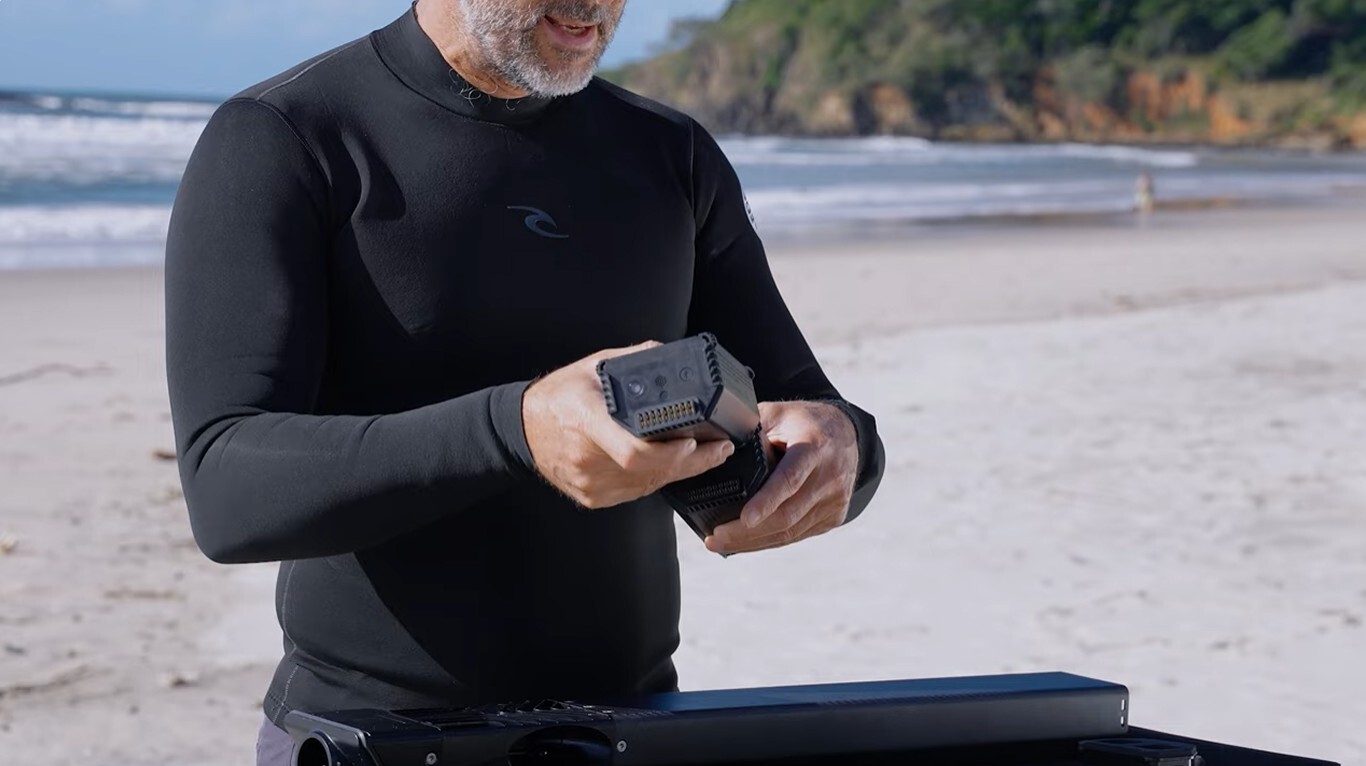
Once the AMPCells are in the cartridge, give them a little push to check for proper connection. You should hear two beeps from the cartridge. After about 5 seconds, the second battery's LEDs will light up at the end of the cartridge.
Once you connect the AMPCells or spacer, slide the end without the handle into the AMPJet cavity. Keep the cartridge flat.
Note: DO NOT hold the cartridge vertically and quickly drop the AMPCells in — you can damage the AMPJet! (Which is a pretty expensive mistake, if you ask us.) Gently insert the cartridge.
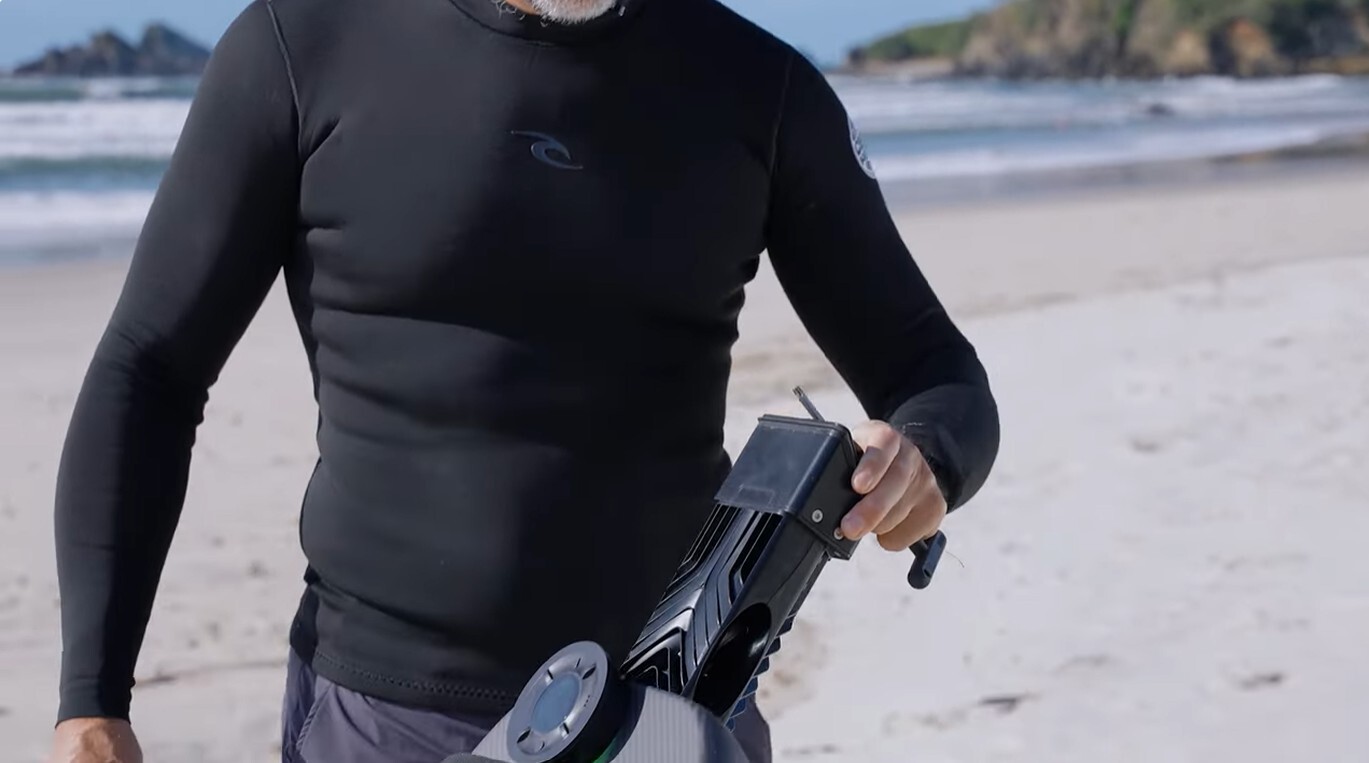
The designers deliberately created the FLITELab with a low-locking bolt to fully insert the cartridge. Why? Let's say, it's an extra level of defense against jamming up the cartridge. Simply turn your wrench until the cartridge is flush with the board. No need to over-tighten — the locking bolt is spring-loaded and will not come loose.
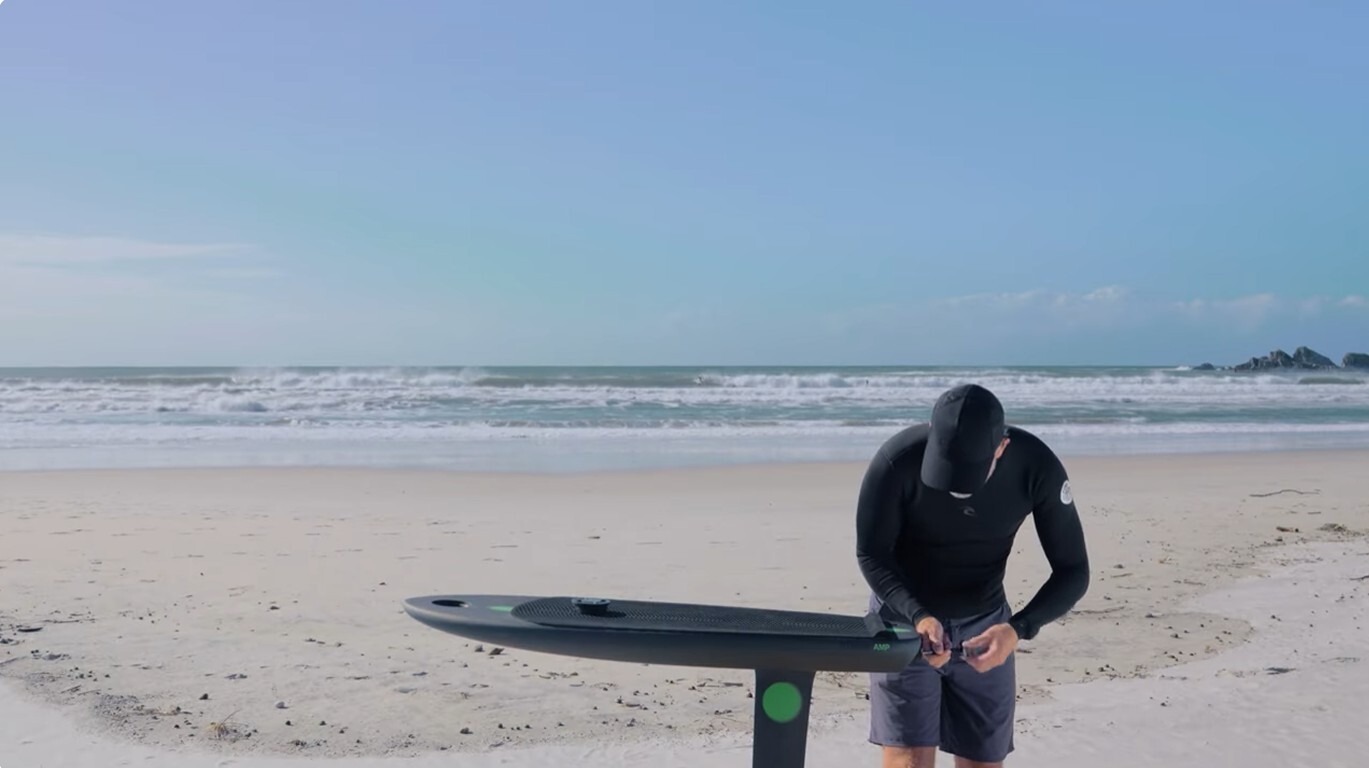
What to Look for:
- Make sure the cartridge end cap is dry and clean. It should stay relatively clean with no issues, but you can always blow or wipe away any debris.
- Check that there is no sand or debris to the 3 lip seals.
- Check the sides of the cartridge. Make sure both clips are in the slots. Also, look for any gaps between the end cap and the carbon tube.
Connecting the LAUNCHPad and AMPJet
Tip: As an added safety measure, keep the LAUNCHPad off while assembling your board to prevent accidental activation.
The LAUNCHPad is your hands-free AMPJet control center that works in sync with the FLITE App. LAUNCHPad will automatically capture sessions to its onboard computer, even when unpowered.
Make sure the cup where the LAUNCHPad sits is completely clean and free of debris. If there is sand in the container, it could jam up the device and be difficult to remove. The best way to make sure this area stays clean is to remove the LAUNCHPad when you're off the beach (like when you're loading it into your car).
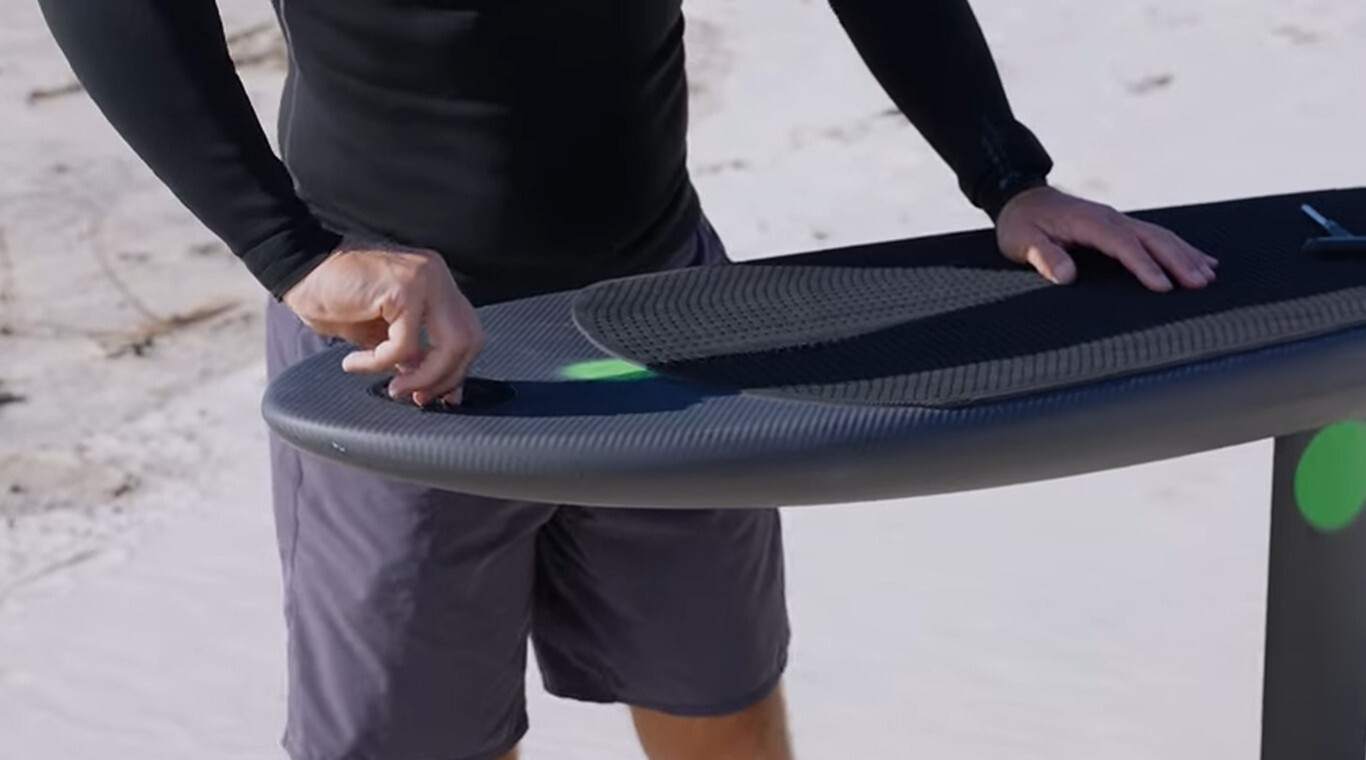
To install, insert the LAUNCHPad into the front of the board. Make sure the FLITELab logo is at the 10 o'clock position. Twist it clockwise until you feel a secure click, which may require some force. To check, make sure the FLITELab logo is at the 12 o'clock position.
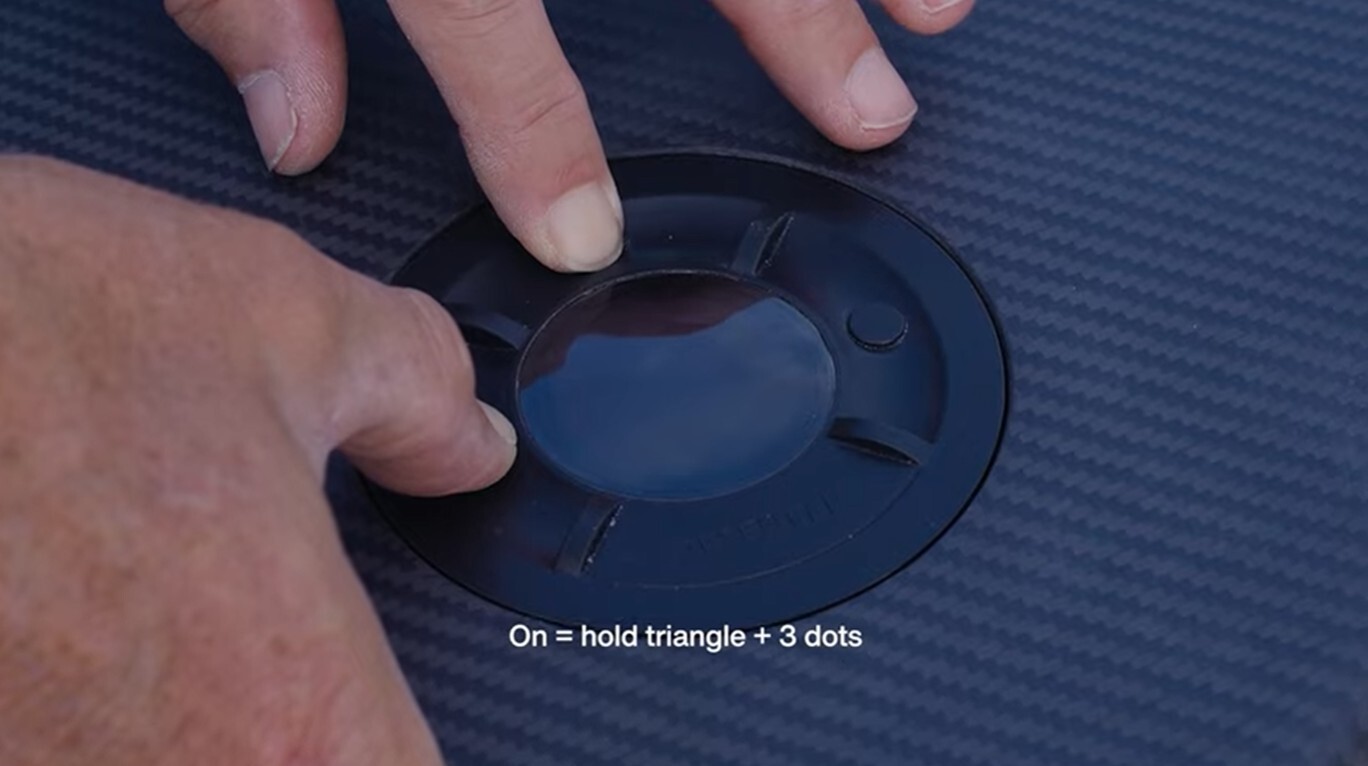
Now, turn on the LAUNCHPad by holding the triangle and the 3 dots for 5 seconds. The FLITELab logo will appear followed by the LAUNCHPad SOC. Make sure the LAUNCHPad is at least 25% charged.
Once on the Home screen, press the circle (Paddle Assist) to test the jet. It should briefly run and display motor test on the screen.

Tips for Your First Ride
- Paddle Assist (circle button): Gives you ~60 seconds of thrust.
- There are 3 levels of thrust (1-3). Level 1 helps save the battery but has less thrust. Level 3 will give you extra thrust but drain the battery faster. Level 2 is a happy-medium and recommended for most riders.
- Boost (triangle button): You want to hit the maximum boost as the wave is coming to pick you up. To do this, activate the boost 3 seconds before that wave gets to you.
- Don't be afraid to paddle with the boost! The harder you paddle your board to start, you better your chances of catching a wave. It might sound complicated at first, but you'll find it's pretty intuitive after your first runs.
Recent Posts
-

Aaron Hadlow Interview: Big Air, Harlem Kites & Kiteboarding Evolution
From 10-Year-Old Beginner to World Champion Rubens: What's up, guys! It's the Brazilian Brothers w …27th Mar 2026 -

Interview with Stig: Big Air, Naish Loyalty & Life Beyond Kiting
Rubens: What's up, guys? It's the Brazilian Bros from MACkiteboarding, and today we've got a very …26th Mar 2026 -

One Board, Every Session | Why We're Stoked on the Omen Emissary
If you've been searching for a single board that can handle light-wind winging, parawinging, prone …25th Mar 2026