
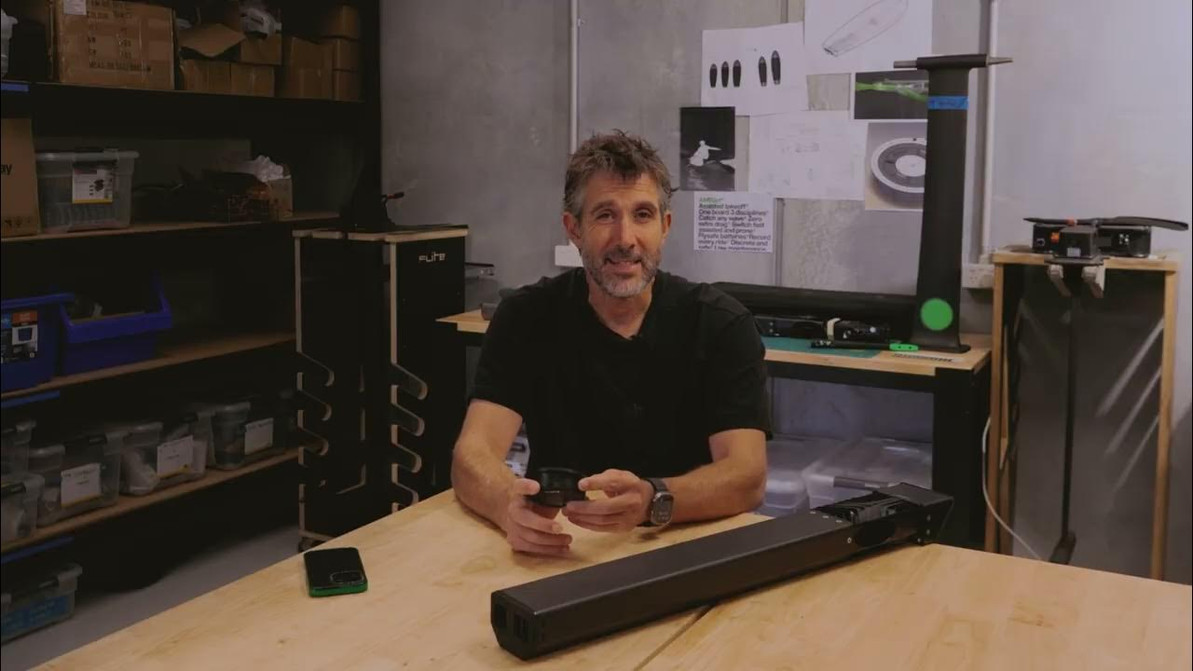
How to Connect & Customize Your FLITELab App
Before you hit the water, it pays to set your AMPJet up for success. This guide helps you connect your Launchpad and cartridge. It also shows you how to run important software updates. You will use the FLITELab app for every step. This way, your ride will be smooth, your data will be synced, and your excitement will be at its best.
If you are a first-time user or need a reminder, follow these steps for proper setup, pairing, and customization.
Download the FLITELab App & Register Your Product
Start by downloading the FLITELab app on your mobile device. Once installed, sign up and register your AMPJet. This unlocks access to software updates, session syncing, and pairing features.
Connect and Update the LAUNCHPad
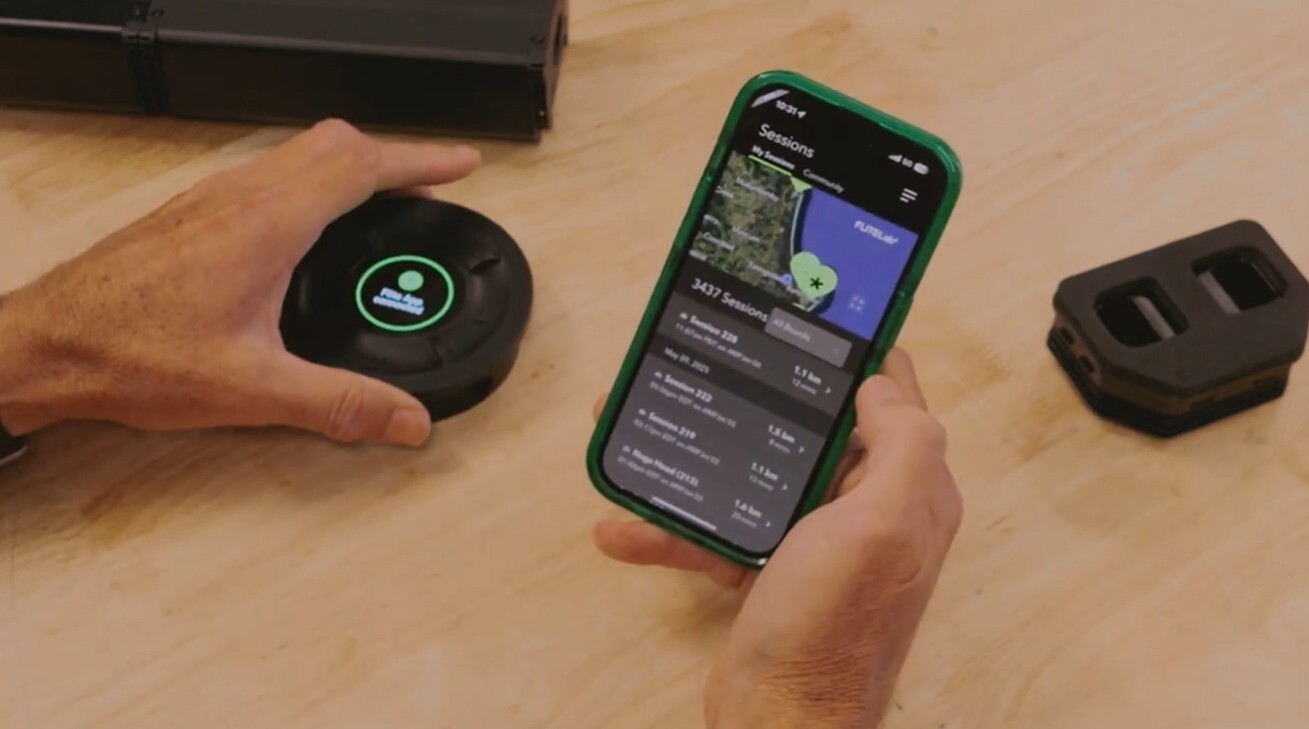
Before heading to the beach, turn on your LAUNCHPad by holding the triangle and menu buttons. The FLITELab logo will appear, followed by the state of charge. Once on the home screen:
- Open the app and tap the Devices tab.
- Your Launchpad should appear. Tap to connect.
- If an update is available, a green “Update” button will appear. Tap it and confirm.
Important:
- Keep your phone close to the Launchpad during the update.
- Avoid using other apps during this time.
- Do not turn off the Launchpad or your phone mid-update.
Updates typically take 5–10 minutes. Once complete, the Launchpad will reboot and reconnect.

Connect and Update the AMPJet Cartridge
You can only pair one device with the app at a time. After updating the Launchpad, turn it off before proceeding.
- Assemble your AMPCells and insert them into the cartridge.
- Wait for the startup beep (double-beep) to confirm activation.
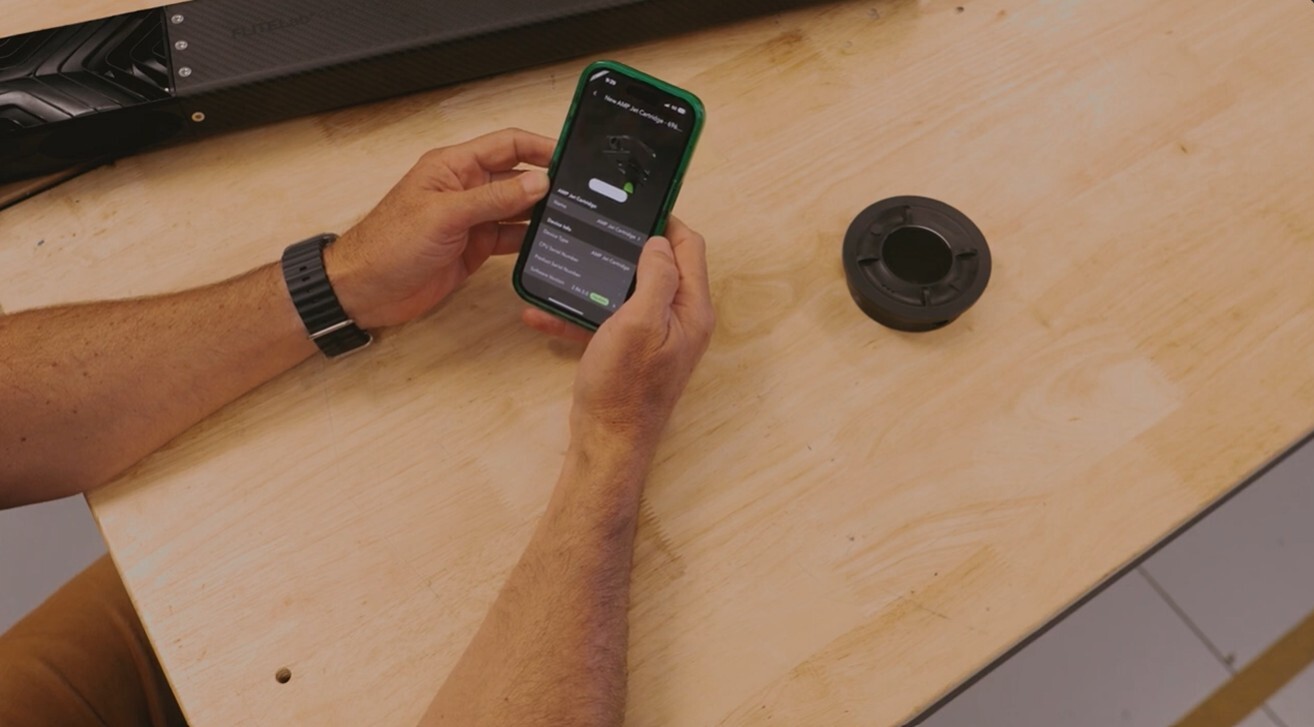
- Reopen the app and navigate to Devices.
- The AMPJet cartridge will appear. Tap to connect.
- If an update is needed, repeat the same update steps as above.
Battery Tip: Make sure both AMPCells have at least 20% charge before starting the update.
Pair the Launchpad to the Cartridge
Once both devices are updated and the app is disconnected:
- Turn the Launchpad back on.
- If it's the first time pairing, it will prompt: “Pair to a Cartridge?” — tap the circle button to confirm.
- Pairing takes about 5–10 seconds.
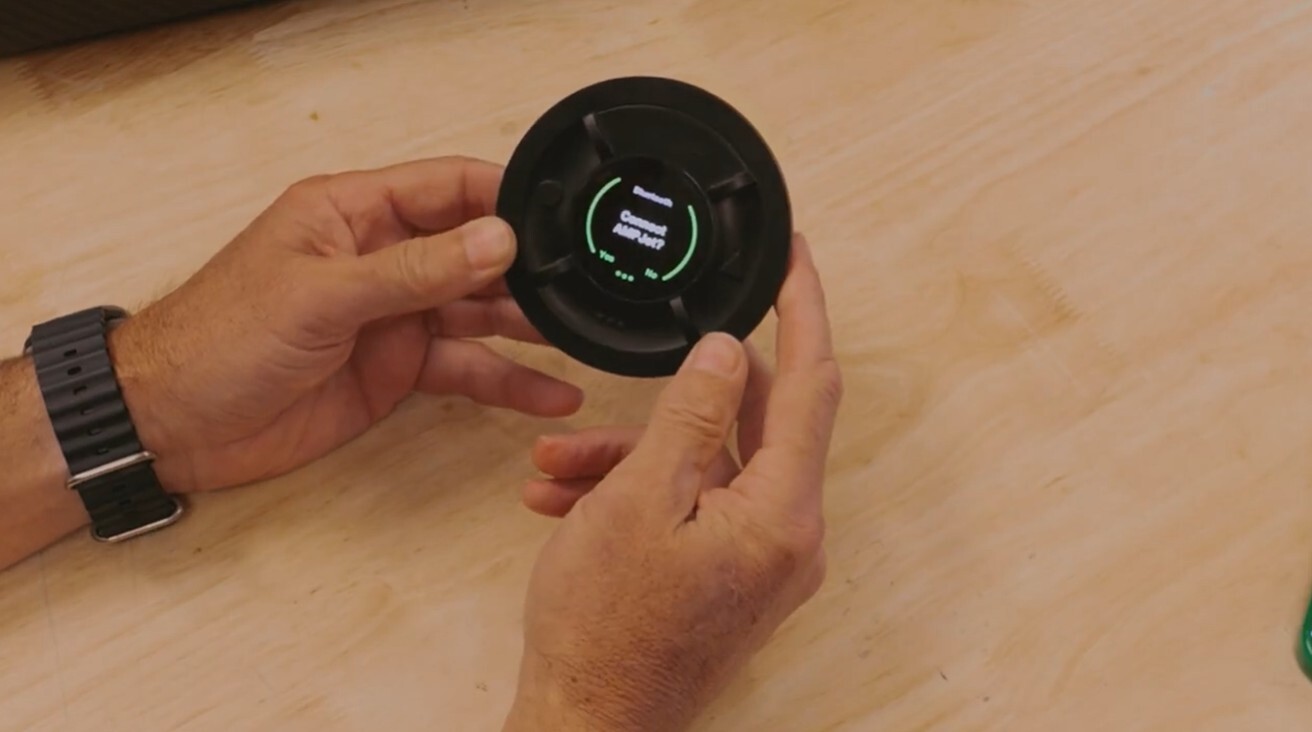
Need to force pairing in the future? Hold the triangle button for 7 seconds, then press the menu button when prompted to pair with the closest powered cartridge.
Customize Your Ride Settings
Your Launchpad allows full customization of your AMPJet performance. Use the menu button to enter the Settings Menu, where you can adjust:
Profiles:
- Prone
- Wing
- Downwind
- Unpowered (for ride tracking without jet assist)
Thrust & Boost Options:
- Boost Thrust (1–10): Power of the jet during launch
- Boost Time (3–8s): Duration of thrust
- Acceleration (1–6s): Ramp-up speed to max thrust
- Paddle Assist (1–3): Level of assistance for paddling

Delay Timer:
For wing foiling, set a boost delay (1–6s) to time your start after hitting the water.
Reset to Default:
Want to revert to factory settings? Just tap the reset option.
Monitor Battery & Session Data
The home screen displays:
- AMPCell battery charge (both cells)
- Boost meter
- Active ride profile
- Time (requires GPS signal)
As you ride, the Launchpad tracks:
- Number of waves caught
- Longest wave distance
- Duration of session
- Real-time wave data
Sync Your Sessions After Every Ride
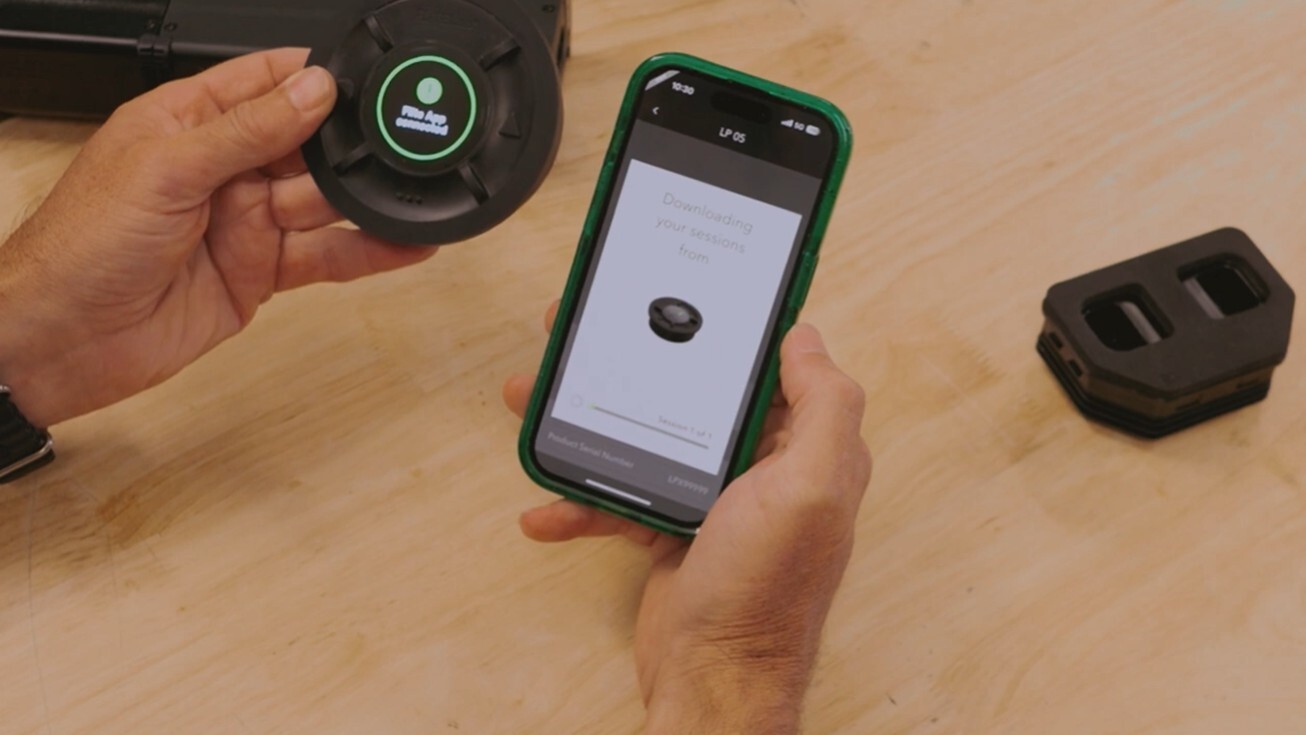
Once off the water, turn off the cartridge and reconnect the app to the Launchpad:
- Tap Sync Now in the app.
- After syncing, you can view your session details — wave counts, maps, times, and performance data.
- Regular syncing prevents storage overload and gives you faster access to analytics.
Bonus: Join the leaderboard and track your stats over time — weekly, monthly, or all-time. This is a great way to monitor progress and compare with friends or the global community!
Recent Posts
-

Aaron Hadlow Interview: Big Air, Harlem Kites & Kiteboarding Evolution
From 10-Year-Old Beginner to World Champion Rubens: What's up, guys! It's the Brazilian Brothers w …27th Mar 2026 -

Interview with Stig: Big Air, Naish Loyalty & Life Beyond Kiting
Rubens: What's up, guys? It's the Brazilian Bros from MACkiteboarding, and today we've got a very …26th Mar 2026 -
One Board, Every Session | Why We're Stoked on the Omen Emissary
If you've been searching for a single board that can handle light-wind winging, parawinging, prone …25th Mar 2026